


How I Use Canva to Create Monthly Scrapbook Themes

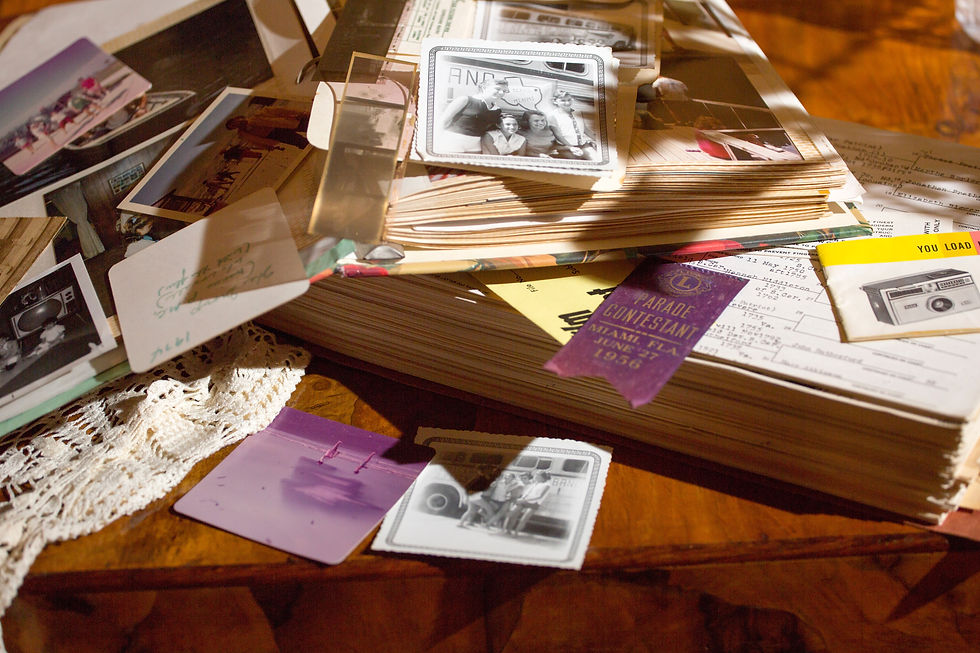
📅 Because scrapbooking gets even more magical when every month has its own vibe.
One of my favorite things about scrapbooking — whether digital or physical — is the storytelling. But I’ve found that when I give each month its own theme, my albums feel more cohesive, creative, and fun to look back on.
And my secret weapon for making that happen? Canva.
Here’s exactly how I plan and design my monthly scrapbook themes, step-by-step.
✏️ Step 1: Pick a Monthly Mood or Theme
I always start by thinking about the month’s vibe:
January → Cozy winter blues and snowflakes
March → Fresh greens and floral patterns for spring
July → Red, white, and blue for patriotic celebrations
October → Spooky, warm-toned Halloween magic
Sometimes the theme is tied to a holiday; other times, it’s based on colors, hobbies, or even a single event from that month.
🎨 Step 2: Collect Images, Colors, and Fonts
Once I have my theme in mind, I hop into Canva and:
Pull in photos from my camera roll or uploads
Search Canva Elements for matching clipart, stickers, and patterns
Create a color palette that fits the mood (hello, color picker tool!)
Pick 1–2 fonts I’ll use consistently for titles and journaling spots
This makes the entire month feel unified, no matter how many pages I make.
📄 Step 3: Design Your Core Pages
For each month, I create:
A Title Page → Sets the tone and introduces the month
Photo Layout Templates → So I can drag-and-drop pictures quickly
Journaling Cards → To record memories and little notes
Embellishments → Digital stickers, borders, and washi tape to match the theme
The best part? Once I design these, I can reuse the layout year after year with new colors or patterns.
🖌 Step 4: Mix Digital & Printable
I like to keep my options open:
For digital scrapbooking, I export my designs as PNGs and build my layouts right in Canva.
For physical scrapbooking, I print my themed elements (like journaling cards and embellishments) and cut them out to use on paper pages.
It’s the perfect hybrid approach.
🔄 Step 5: Repeat & Refine Each Month
At the end of each month, I start the process again — but I also keep a Canva folder with all my past themes. This way, I can pull ideas, re-use designs, and stay organized without starting from scratch.
🛍 Ready-to-Use Monthly Scrapbook Kits
If you want to save time, I’ve created themed scrapbook kits you can customize in Canva — complete with papers, journaling cards, and embellishments for each month.
✨ Find them here:
💌 Join My Mailing List for Freebies + Creative Prompts
Want a free character profile template to get started?Join my email list and get:
A printable + digital character sheet
Monthly creative freebies and Canva tips
First access to new Etsy launches
Encouraging emails for your writing + storytelling journey
Let’s make writing feel like a cozy adventure again. ✍️✨
💛 Final Thoughts
Creating monthly scrapbook themes in Canva has completely changed the way I document my life. Instead of random, mismatched pages, I now have a beautiful, organized collection of memories that feels intentional and joyful.
And the best part? It’s just as much fun to make as it is to look back on.
So grab your favorite photos, open Canva, and start dreaming up your next monthly theme. You’ll thank yourself later when your scrapbook tells a story that’s as beautiful as the moments inside.
You’ve got this,
💛 Rea 🌻Creator of A Rea of Treasures


Comments